
Exporting Analytics & Visitor Logs
You can export three kinds of data from Analytics. The export button at the top of the page changes with the tab you’re on.
| Tab | Button | What you get | Plan |
|---|---|---|---|
| Visitors | Export visitors | The visitor list as a CSV file | Advanced and above |
| Orders | Export orders | The order list as a CSV file | Unlimited or Plus |
| Report | Export CSV / Copy | The daily report numbers as a CSV file, or copied to your clipboard | All plans |
The export uses the date range and filters you selected.
Export Visitors
Section titled “Export Visitors”- Go to Analytics → Visitors.
- Choose the date range and filters you want.
- Click Export visitors at the top of the page.
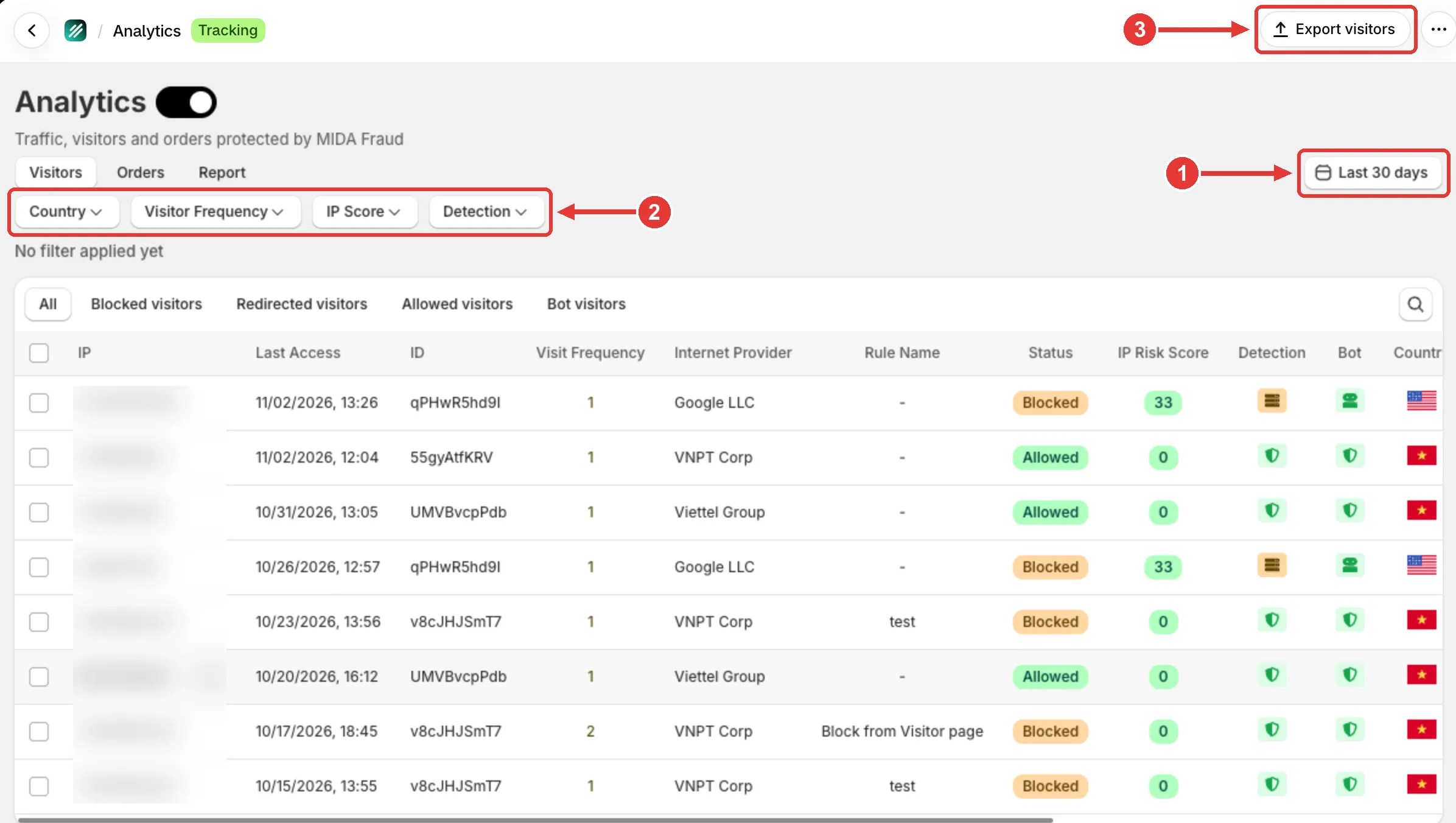
- In the Export Visitors dialog, click Yes, proceed to download the full visitor data as a CSV file.
If your store only has Quick Export, the file includes basic visitor data (ID, IP, and frequency). For full data, including country and risk score, contact our support team and we’ll turn it on for you.
Export Orders
Section titled “Export Orders”- Go to Analytics → Orders.
- Choose the date range and filters you want.
- Click Export orders, then Yes, proceed.
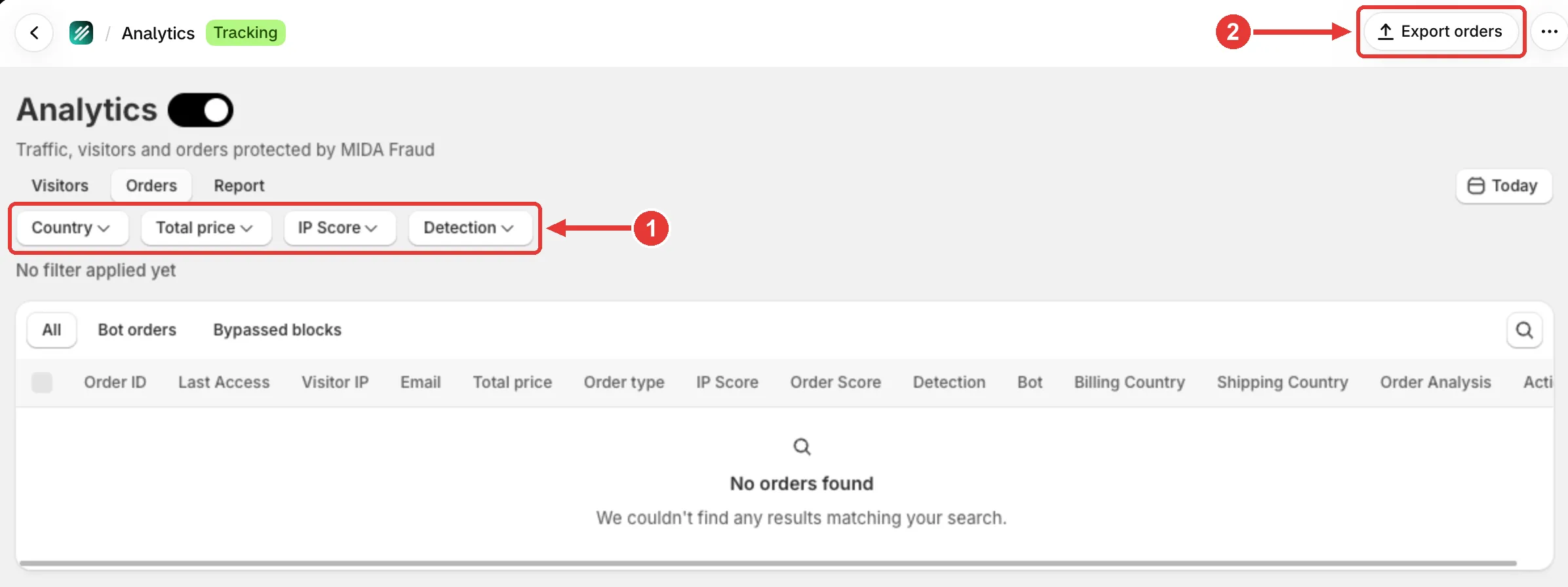
As with visitors, Quick Export includes basic order data only (ID, type, and IP). Contact support for full data exports.
Export the Report
Section titled “Export the Report”- Go to Analytics → Report and choose the date range.
- Click Export CSV to download the daily numbers, or Copy to paste them into a spreadsheet.
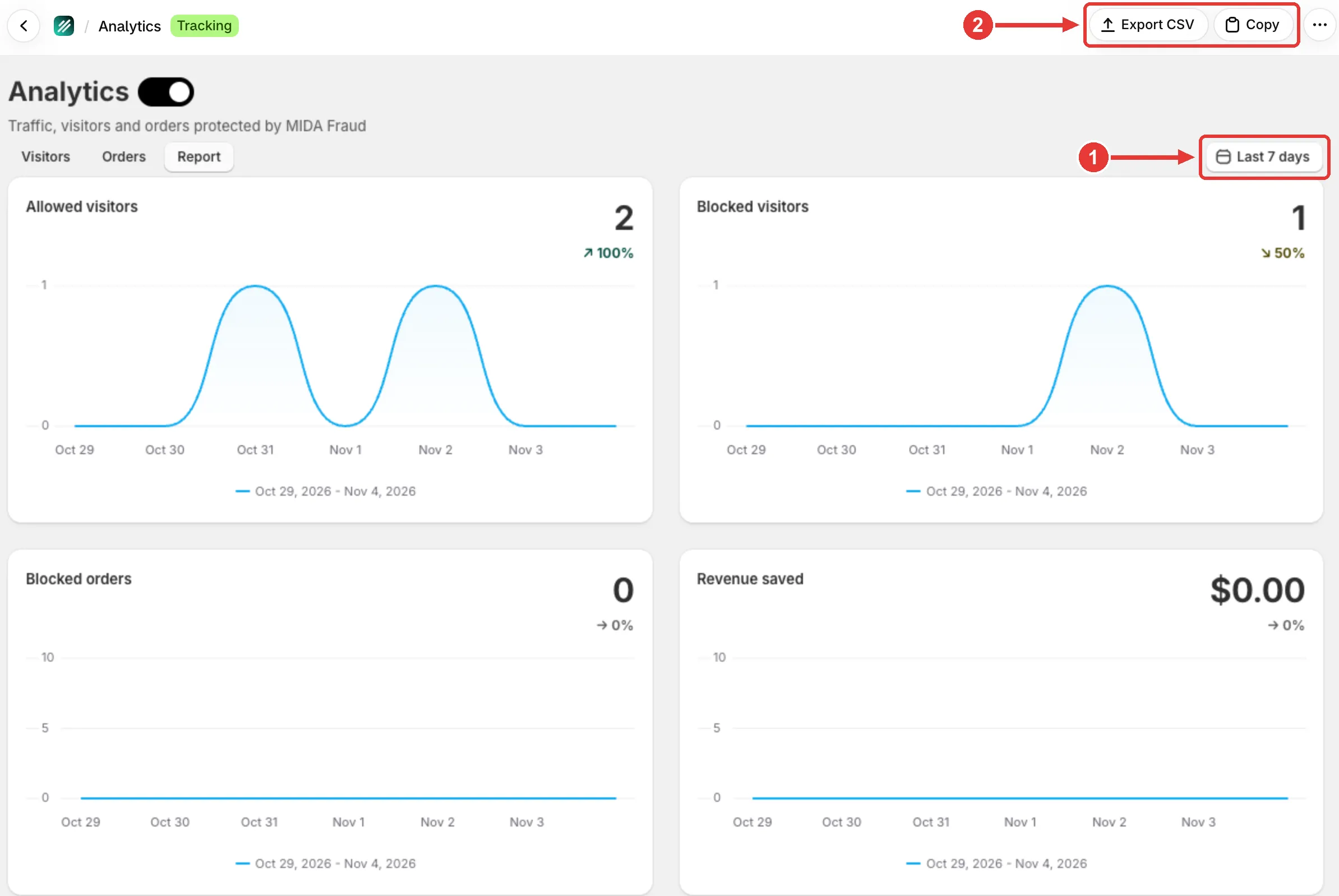
See Analytics Report.
If you have any questions, feel free to contact us via Crisp Chat or email us at [email protected].