
How to Customize the Block Page
Customize your Block Page to provide visitors with a clear and branded message when access to your store is restricted.
To configure the Block Page, go to Blocking Rules → Block Page Settings.
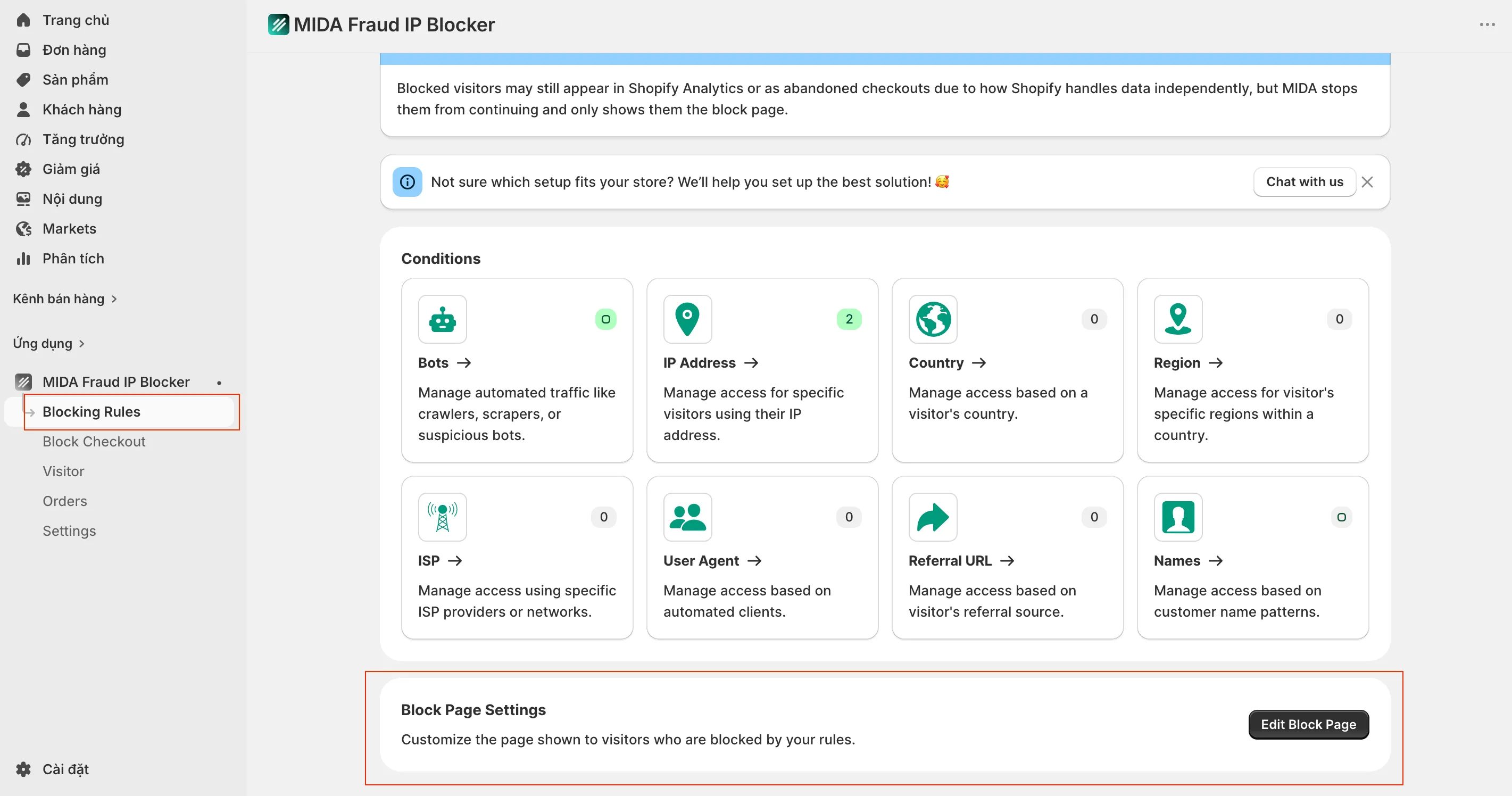
Customize Your Block Page
Section titled “Customize Your Block Page”The following settings are available:
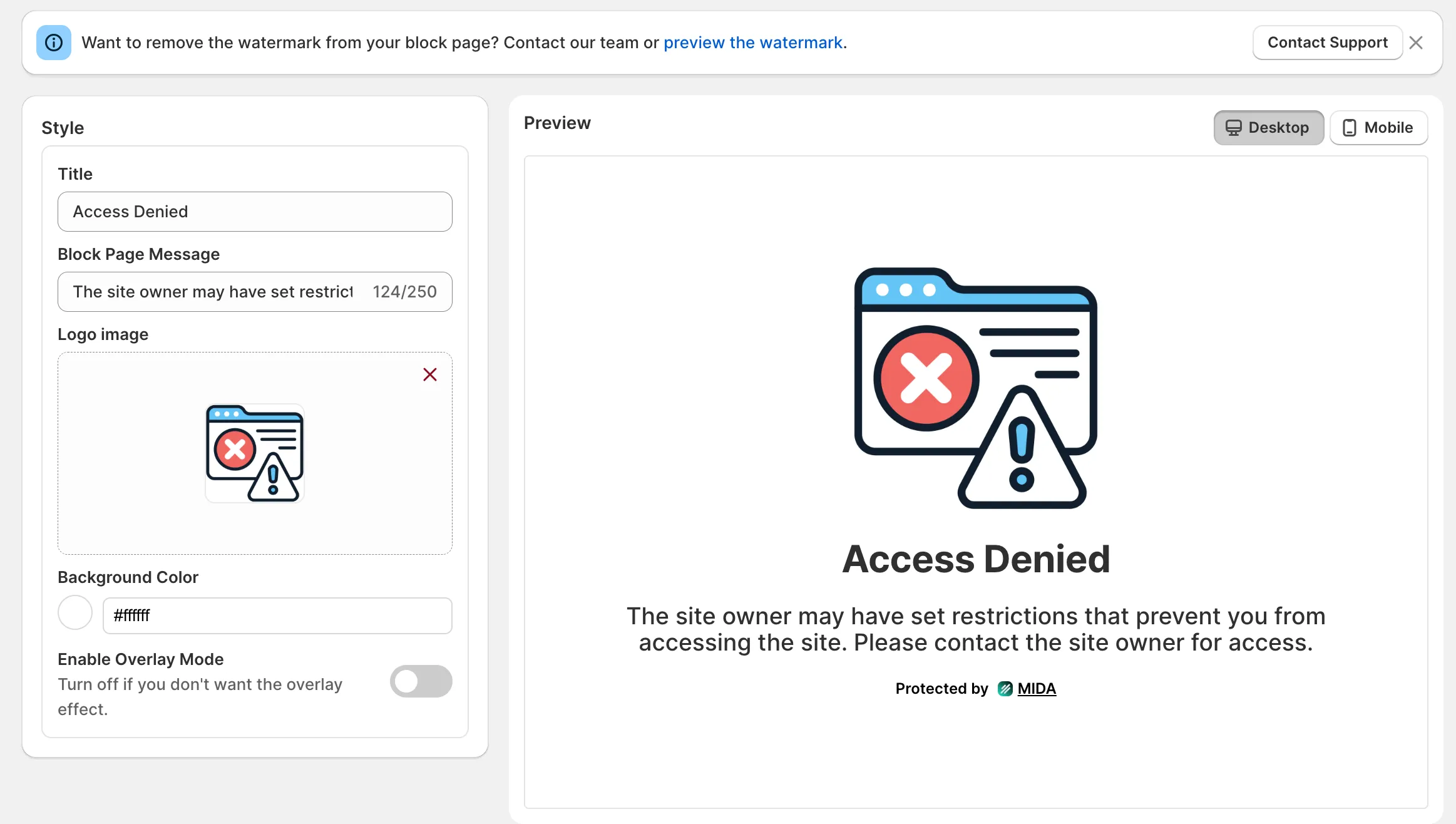
Block Page Title
Section titled “Block Page Title”Set the main title displayed on the Block Page.
Use a clear and concise title to inform visitors that access has been restricted.
Block Page Message
Section titled “Block Page Message”Customize the message shown below the title.
You can explain why access has been blocked or provide additional instructions for legitimate customers.
Logo / Image
Section titled “Logo / Image”Upload your store’s logo or another image to display on the Block Page.
Adding your branding helps visitors recognize that the page belongs to your store.
Background Color
Section titled “Background Color”Choose the background color of the Block Page to match your brand identity.
Enable Overlay Mode
Section titled “Enable Overlay Mode”Enable Overlay Mode to display the Block Page as an overlay instead of replacing the entire page.
This allows visitors to clearly see that access has been restricted while maintaining a consistent storefront experience.
Best Practices
Section titled “Best Practices”To create a professional Block Page, we recommend:
- Using a clear and informative title.
- Providing a helpful message for legitimate customers.
- Displaying your store logo for brand recognition.
- Choosing colors that match your storefront.
- Enabling Overlay Mode if you prefer a less disruptive visitor experience.
If you have any questions, feel free to contact us via Crisp Chat or email us at [email protected].