
What happens if a customer is incorrectly blocked?
A blocked customer sees your block page and can’t browse your store. You can find out why and let them back in within a few minutes.
1. Find the Customer and the Reason
Section titled “1. Find the Customer and the Reason”- Ask the customer for their IP address (they can find it on whatismyip.com).
- In the MIDA Fraud app, go to Analytics → Visitors and open the Blocked visitors tab.
- Search for the IP address.
- Check the Rule Name, Detection, IP Risk Score, and Bot columns to see what blocked them.
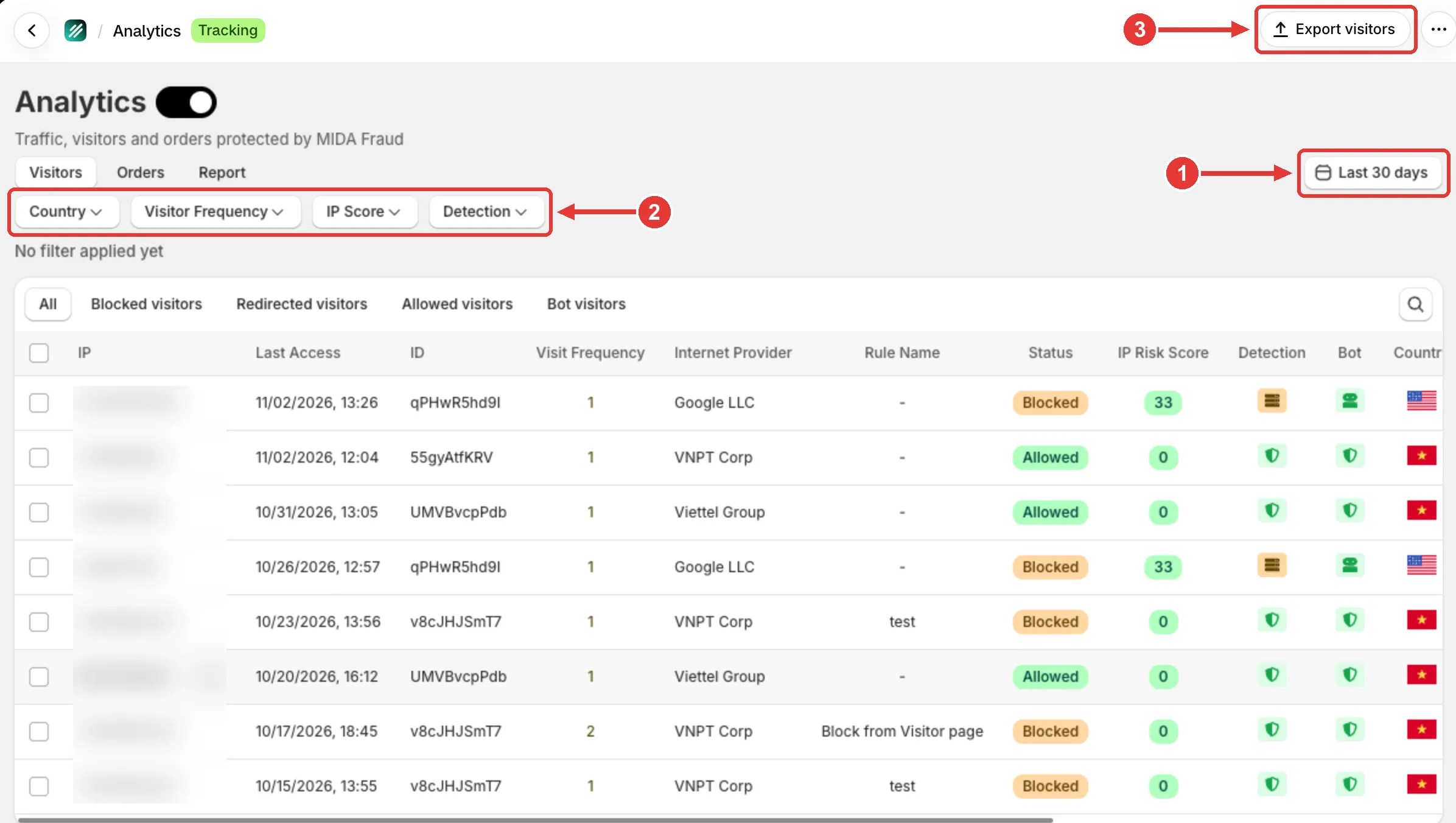
Visitors are only listed while visitor tracking is on. See Enable Visitor Tracking.
2. Let Them Back In
Section titled “2. Let Them Back In”- To allow this customer: click Allow Visitor in the Action column. MIDA creates a Whitelist rule for their IP address.
- If a rule blocked them: edit or disable the rule in Blocking Rules.
- If a VPN, proxy, or high risk score blocked them: switch Protection Mode to Relaxed or Balanced, or raise the risk score threshold. See Advanced Rule Configuration.
- If they use Safari or an iPhone: turn on Allow Apple iCloud Private Relay in Settings.
- If Bot Protection blocked them: try turning off Platform mismatch in Bot Protection.
Changes apply within a few seconds. Ask the customer to reload the page.
3. Help Customers Reach You
Section titled “3. Help Customers Reach You”On your block page, turn on:
- Enable Contact Email, so blocked customers can email you.
- Enable VPN Notice, so customers using a VPN know they can turn it off and reload.
If you can’t find the reason, contact us via Crisp Chat or email [email protected] with the customer’s IP address, and we’ll review your setup.