
API Data Export
Overview
Section titled “Overview”This guide provides instructions for synchronizing analytics data using the MIDA Sessions Replay & Heatmap API, including in-app configuration for sync frequency and API key management, as well as the cURL request format.
Prerequisites
Section titled “Prerequisites”- API Endpoint:
https://mida-session-recording-replay.bsscommerce.com/apiv1/analytics/sync- API Key: Generated and named via the in-app API Configuration Screen.
- Tool: cURL or any HTTP client for making POST requests.
- Access: Admin access to the MIDA application for configuration.
In-App Configuration
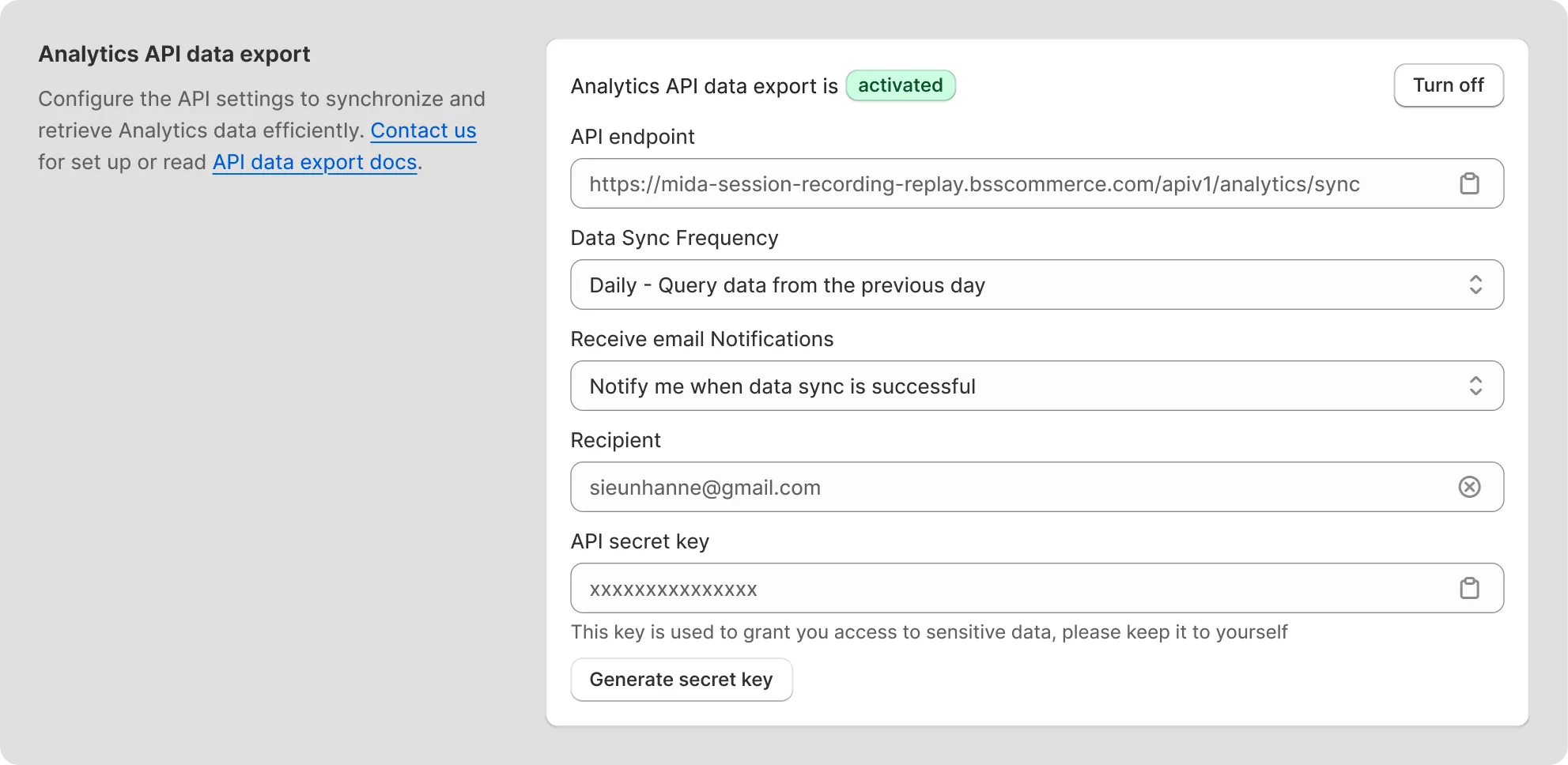
Section titled “In-App Configuration”API Configuration Screen
Section titled “API Configuration Screen”- Navigate to Settings:
- Go to the “Analytics API Data Export” section in the MIDA application.
- Enable API:
- Toggle API Status to [Activated].
- Generate API Key:
- Click [Generate API Key].
- Copy the generated key using the [Copy Button] for use in API requests.
- Set Sync Frequency:
- Select from the Data Sync Frequency dropdown:
- Daily: Syncs data from the previous day.
- Weekly: Syncs data from the previous week.
- Select from the Data Sync Frequency dropdown:
- (Optional) Configure Email Notifications:
- Choose “Notify me when data sync is successful” in Receive email Notifications.
- Enter Recipient (default as store email).
- Save Settings:
- Click [Save] on the top barto apply changes.

API Request
Section titled “API Request”To synchronize analytics data, use the following cURL command, ensuring the frequency matches the in-app setting:
curl -X POST \\ <https://mida-session-recording-replay.bsscommerce.com/apiv1/analytics/sync> \\ -H 'Content-Type: application/json' \\ -H 'x-mida-secret-key: {your_api_key}' \\Parameters
Section titled “Parameters”- Method: POST
- Headers:
Content-Type: application/jsonMida-api-key: {your_api_key}(Replace{your_api_key}with your generated API key in API secret key)
Example
Section titled “Example”curl -X POST \\ <https://mida-session-recording-replay.bsscommerce.com/apiv1/analytics/sync> \\ -H 'Content-Type: application/json' \\ -H 'x-mida-secret-key: abc123xyz789' \\Response
Section titled “Response”- Success: Returns synced data (e.g., Total Visitors, Total Sessions, Successful Orders, etc.).
- Failure: Returns error message (e.g., “Invalid API key” or “Sync failed”).
Monitoring
Section titled “Monitoring”- Email Notifications:
- Success:
- Subject: “[Analytics Sync] Success - [YYYY-MM-DD HH:mm]”
- Content: Timestamp, Status.
- Failure:
- Subject: “[Analytics Sync] Failed - [YYYY-MM-DD HH:mm]”
- Content: Timestamp, Status.
- Success:
Re-generate API secret key
Section titled “Re-generate API secret key”To remove an old API key, click “Regenerate secret key” and regenerate a new one when needed:
.B3HOMfu__Z1dgga8.webp)
Regenerate secret key
- Keep the API key secure and regenerate if compromised.
- For support, contact the MIDA team via the provided support channel.
If you have any questions, feel free to contact us via Crisp Chat or email us at [email protected].