
Block Page Settings
This page can be fully customized in Settings → Block Page Settings to match your store’s branding and communication style.
1. Block Page Title
Section titled “1. Block Page Title”- The main heading that appears at the top of the block page.
- Example: Access Denied, This store is not available in your region.

2. Block Page Message
Section titled “2. Block Page Message”-
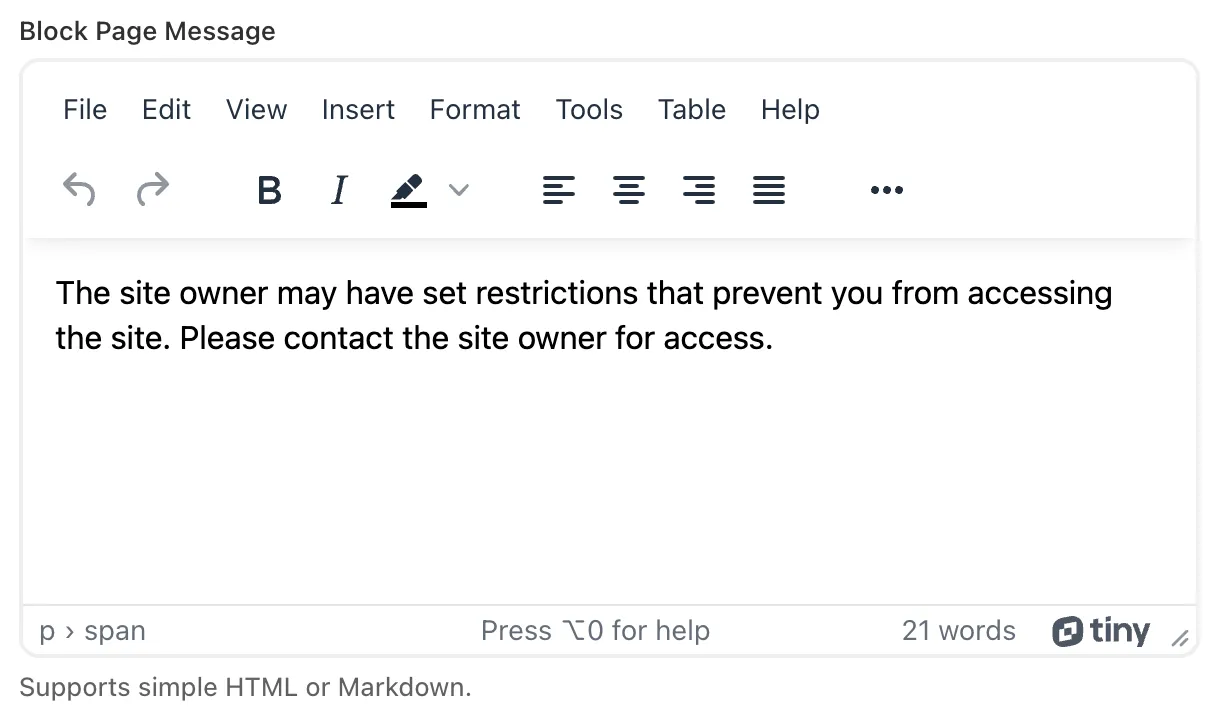
The body text shown under the title.
-
Supports basic HTML and Markdown.
-
Use it to explain why access is denied and how to contact you.
-
Example:
“The site owner has restricted access from your location. If you believe this is a mistake, please contact us.”
3. Logo / Image
Section titled “3. Logo / Image”- Upload your store logo or an image to display on the block page.
- Supported formats: .png, .jpg.
- Recommended size: under 1MB for fast loading.
4. Background Color
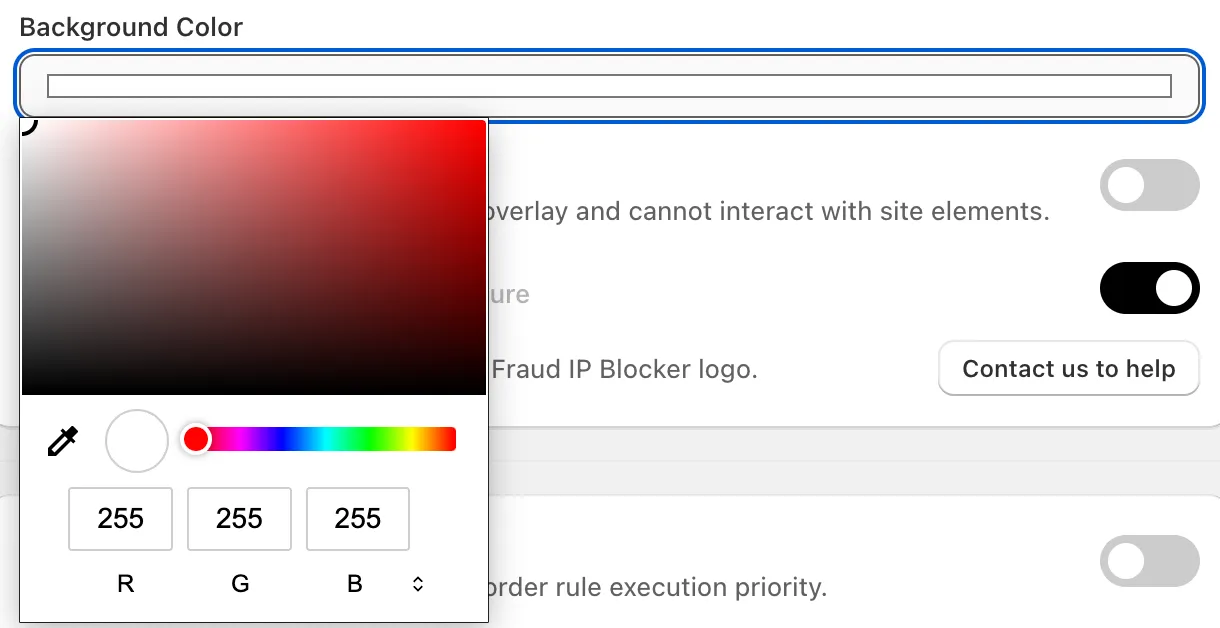
Section titled “4. Background Color”- Choose a background color that matches your brand.
- Tip: Keep text contrast high for readability.
5. Overlay Mode
Section titled “5. Overlay Mode”
- If enabled: Visitors will see a blocking overlay on top of the entire site.
- They cannot click or interact with any page elements.
- Useful when you want to “soft block” visitors while still showing the storefront behind a shield.
6. MIDA Signature
Section titled “6. MIDA Signature”.CQH0sVOD_Z1yyX8L.webp)
- By default, the block page includes a small “Protected by MIDA Fraud IP Blocker” footer.
- You can toggle this on/off in settings via Contact us.
If you have any questions, feel free to contact us via Crisp Chat or email us at [email protected].